Approvals and security: you stay in control
Your AI employees prepare and propose, but sensitive decisions are yours. Here you learn to decide approvals, review costs before running, set limits and permissions, and stop all activity with one click.
On this page
- Understand when an employee asks for permission
- Approve or reject an action
- Decide from your phone
- Stop approving repetitive actions
- Review the cost before running
- Set spend limits
- Decide what each employee can do
- Protect your keys
- Use the Security center
- Stop everything in an emergency
Understand when an employee asks for permission#
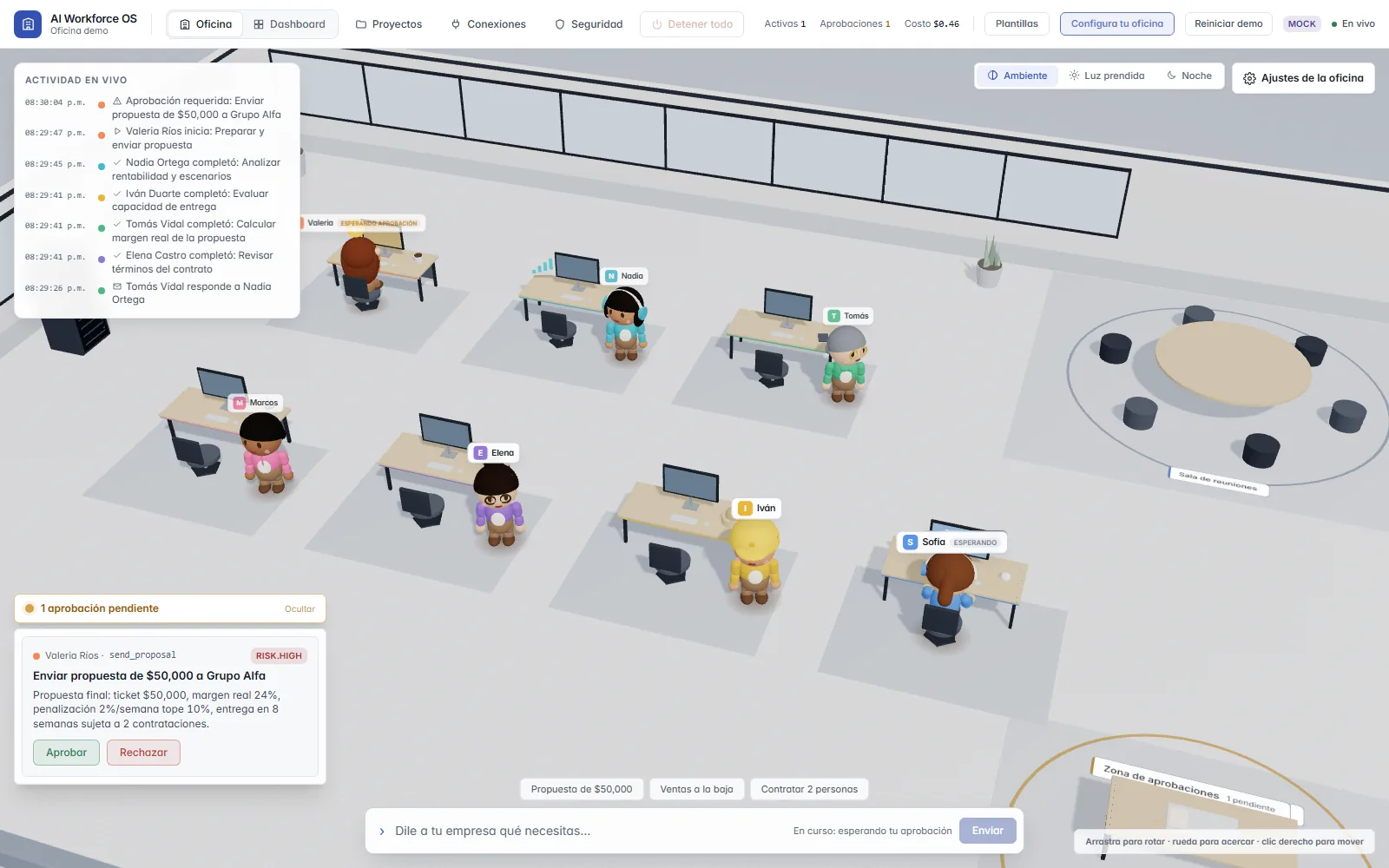
When an agent wants to do something that needs your sign-off, it stops and waits in the office's approvals area. Each notice says who is asking, which action it is, the details and the risk level (low, medium or high). An agent can ask for approval, but never grant it.
How much each employee asks depends on its autonomy level, which you see in its panel and in “What each employee can do”:
| Level | What happens to actions that change something |
|---|---|
| Suggest only | It does not run them: they are recorded as a suggestion and a person carries them out |
| Approve each action | Each one waits for your approval |
| Rule-based | Its permissions decide, and an action flagged as high risk asks for approval |
| Autonomous | Its permissions decide without escalating on risk; your organization's rules and limits still apply |
Note
Sending an email, creating a calendar event, posting to Slack or LinkedIn, and creating GitHub issues or comments always ask for approval, whatever the level.
Approve or reject an action#
- Open the pending approvals tray at the bottom left of the office. It opens by itself when a new one arrives, and you can hide or show it.
- Read the card's title, details and risk.
- Press “Approve” to let the agent continue or “Reject” to stop that action.
Note
Deciding requires the Admin or Owner role. If your role can only see the approval, the card tells you so and shows no buttons.
Tip
You can also decide from the “Approvals” section of the Dashboard.
Decide from your phone#
- Open app.workforceai.es/approvals in your phone's browser and sign in.
- Press “Enable notifications” to hear when something is waiting for your decision.
- Open the approval and decide with “Approve” or “Reject”.
Note
The notification only shows the title and risk; the decision is always made inside the app, signed in. On iPhone, add the app to your Home Screen first.
Tip
If an approval needs two different people, the card shows how many approvals it has.
Stop approving repetitive actions#
For internal project actions that can be undone, the card offers to remember your decision. External actions never qualify: sending, publishing, paying, deleting and running code always ask.
- Tick “Remember this decision for this kind of action”.
- Choose for how long: “This session (about 8 hours)” or “This project”.
- If you chose the project, tick “Also for the other agents of this project” to extend it.
- Press “Approve for this session” or “Approve for this project”.
Tip
Revoke a remembered decision at any time from the project's “Approvals” tab.
Review the cost before running#
Before running a request that may touch connections with write access, the office asks you to review its plan on the Security screen, under “Plan review”.
- Open “Settings” and go to “Security”.
- In “Plan review”, read the estimated cost (with its likely maximum), the approximate time, the “Connections it could touch” and the approvals expected.
- Take out any tasks you do not want with “Remove”.
- Press “Approve and run” or “Reject”.
Note
It is an estimate, not an invoice. If a request's maximum estimated cost goes over the confirmation threshold, the office also waits for your confirmation before starting.
Set spend limits#
- For a per-employee cap, open the Dashboard, go to “Costs & errors” and enter its “Monthly cap (USD)” under “Budget limits”. Press “Save”; leaving it empty removes the cap.
- To see every limit, open “Settings”, go to “Security” and scroll to “Spend limits”: each row shows the scope, period, usage, limit and what happens “When reached” (“Warn”, “Pause and ask” or “Block”).
- To limit a connection, open “Connections”, go to the “Limits” tab, set “Uses per day”, “Writes per day” and “Monthly budget (USD)”, and press “Save limits”.
Tip
An employee that hits its cap shows as “Paused” under “Budget limits”.
Decide what each employee can do#
Connecting an account is not granting access: each permission is assigned separately, following least privilege. Integrations with real accounts are still being tested.
- Open “Settings”, go to “Connections” and press “Connect”.
- Follow the “Connect an account” wizard: “Connection name”, “Connection type”, “What will it be able to do?” and, if you like, “Assign to employees (optional)”.
- Open the “Permissions by employee” tab and click a cell (employee and connection) to view or change its permissions.
- Grant write permissions from that same tab. If there is more than one admin, another person must approve the grant.
- Check “What each employee can do” and the “Usage log” to see what happened.
Protect your keys#
Your connections' keys and secrets are sent once and stored encrypted on the server. The screen never shows them again: to change one, you rotate it.
The AI model does not see them either, because tools are run by the server, not the model. With a real model, task text does travel to the configured model provider, so check its terms before using sensitive data.
Note
AI Workforce OS does not hold any security certifications today.
Use the Security center#
The “Security and control” screen (Settings, Security) gathers the office's brakes. Nothing you do here deletes data.
| Control | What it does |
|---|---|
| Global read-only mode | Employees keep reading and proposing, but send and change nothing |
| Pause employees | A paused employee starts no new tasks and uses no connections, and resumes where it left off |
| Stop by tool | Switches a tool off for everyone; any admin stops it and only the Owner turns it back on |
| Operating hours | Outside hours, new work waits in plain sight; work already running is not interrupted |
| Unusual activity alerts | Warn about a spend spike, bursts of tool requests, many rejected approvals or new recipient domains; they never block on their own |
Tip
Alerts can freeze the office automatically, but that option is off by default.
Stop everything in an emergency#
“Stop everything” is in Settings and in the Security center. Any admin can stop, but only the Owner can lift the lock. Nothing is deleted. There are two levels:
- Press “Stop everything” and choose the level.
- Write a reason if you like and confirm with “Yes, stop everything”.
- To resume, the Owner opens “Security”, writes the “Reason to resume” and presses “Lift lock”.
| Level | What it does |
|---|---|
| Everything stopped | Nothing new starts and connection use is blocked; accounts stay connected |
| Full lockdown | Also suspends all connections and cancels pending sends |
Note
When you resume, actions that were on hold ask for approval again.
Try it in your own office
Create your account and land in an office with your AI team. For now the AI runs in simulation mode: scripted responses, no cost and nothing to connect.